
GB WhatsApp Not Sending or Receiving Messages? Here’s How to Fix It
When GB WhatsApp is not sending or receiving messages, the problem can be frustrating, especially when your internet connection seems fine and other apps are working normally. You may see a clock icon, a message stuck on one tick, or receive several messages only after opening GB WhatsApp.
First, Check What Is Actually Happening
Not every message problem means the same thing. Look at the icon next to your message or check whether incoming messages arrive normally.
| What you notice | What it may indicate | What to try first |
|---|---|---|
| Clock icon stays for a long time | Message has not left your phone | Check your connection |
| One gray tick for a long time | Message was sent but not delivered | Check the contact and connection |
| You can send but cannot receive | Background or notification restrictions | Check battery and background data |
| You can receive but cannot send | Connection or GB settings issue | Switch networks and check privacy settings |
| Messages arrive only after opening GB WhatsApp | Background activity is restricted | Check battery and background permissions |
| Nobody can send or receive messages | App or connection problem | Check network, version, and GB settings |
If the problem only happens with one contact, don’t assume your entire GB WhatsApp installation is broken. Test another chat first.
1. Switch Between Wi-Fi and Mobile Data
Start with the simplest possibility: your internet connection.
Even if your phone shows a Wi-Fi or mobile data icon, the connection may be unstable or unable to communicate properly with WhatsApp’s servers.
Try this:
- Turn Wi-Fi off and use mobile data.
- If you’re already using mobile data, connect to Wi-Fi.
- Turn Airplane Mode on for about 10 seconds, then turn it off.
- Open another website or app to confirm that the connection works.
- Try sending a short text message in GB WhatsApp.
If messages work after switching networks, the problem was probably related to your original connection rather than GB WhatsApp itself.
If you use a VPN, private DNS, firewall, or another network-filtering service, temporarily disable it and test again.
2. Allow GB WhatsApp to Run in the Background
This is especially important if GB WhatsApp does not receive messages until you open the app.
Android can restrict background activity to save battery or mobile data. When this happens, GB WhatsApp may not maintain its connection normally while it is closed.
On most Android phones, open:
Settings → Apps → GB WhatsApp → Mobile Data & Wi-Fi
Make sure background data is allowed.
You can also check:
Settings → Apps → GB WhatsApp → Battery
Depending on your phone, look for settings such as:
- Allow background activity
- Unrestricted
- No restrictions
- Don’t optimize
The exact names vary between Samsung, Xiaomi, OnePlus, OPPO, Vivo, and other Android devices.
After changing the setting, close and reopen GB WhatsApp and test incoming messages again.
3. Turn Off Battery Saver
Battery Saver can sometimes prevent messaging apps from running normally in the background.
If your messages appear only when you open GB WhatsApp, temporarily disable:
Battery Saver / Power Saving Mode / Ultra Power Saving Mode
Then send yourself a test message from another phone or ask a contact to send you one.
If the message arrives immediately, your phone’s power-management settings were probably restricting GB WhatsApp.
Some Android phones also have their own automatic app-killing or background-management features. If you have enabled aggressive battery optimization, make sure GB WhatsApp is allowed to keep running in the background.
4. Check GB WhatsApp Privacy Settings
GB WhatsApp provides more privacy controls than the official WhatsApp app, and some of these settings can affect how messages and message indicators behave.
If the problem started after you changed several privacy options, open:
GB WhatsApp → Three Dots → GB Settings → Privacy and Security
Review the settings related to:
- Blue ticks
- Second ticks
- Online status
- Read status
- Hide options
- Message privacy
If you recently customized these options, try resetting the privacy settings and testing the chat again.
Some GB WhatsApp community discussions have specifically suggested using Reset Privacy when users cannot send or receive messages. The exact option can vary depending on your GB WhatsApp version.
You don’t need to disable every privacy feature permanently. Resetting the settings is mainly a troubleshooting step to see whether a customized option is causing the problem.
5. Clear the GB WhatsApp Cache
Temporary files can sometimes cause unusual behavior after an app has been used for a long time or updated several times.
To clear the cache, go to:
Settings → Apps → GB WhatsApp → Storage → Clear Cache
Then open GB WhatsApp again and try sending a message.
Use Clear Cache, not Clear Data.
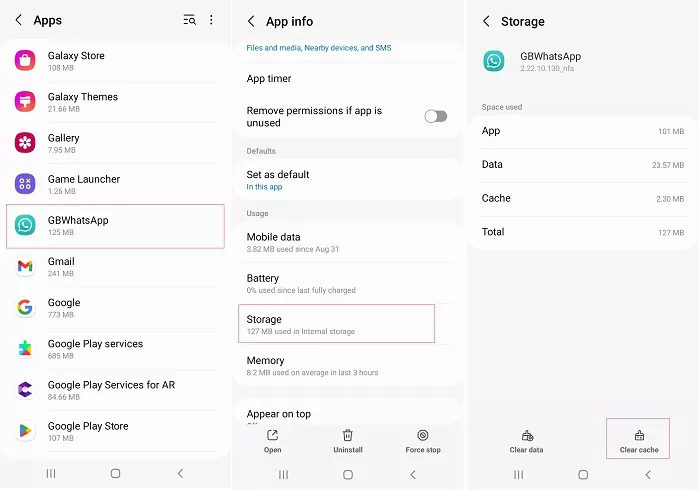
Clearing the cache removes temporary files without removing the entire application. If clearing it fixes the problem temporarily but the issue keeps returning, continue checking the other causes instead of repeatedly clearing the cache.
6. Check Your GB WhatsApp Version
An outdated GB WhatsApp version can cause compatibility problems.
GB WhatsApp is a modified version of WhatsApp, so an older build may stop behaving normally when the underlying WhatsApp service changes.
This is worth checking if:
- GB WhatsApp suddenly stopped working.
- Messages worked before but stopped after a WhatsApp-side change.
- You have been using the same GB WhatsApp version for a long time.
- Other people using newer builds do not have the same problem.
- The app frequently shows connection errors.
Open the update section inside your GB WhatsApp build if it provides one, and check whether a newer compatible version is available.
If you update, make sure you know which GB WhatsApp build you are installing. Avoid installing APK files from unfamiliar sources simply because they claim to be the newest version.
7. Check Your Phone’s Date and Time
This is a quick fix that is easy to overlook.
An incorrect date, time, or time zone can interfere with secure connections between apps and online services.
Go to:
Settings → System → Date & time
Then enable automatic date and time if your phone provides that option.
Also check the automatic time-zone setting.
Once the time is corrected, restart GB WhatsApp and try sending a message again.
8. Test Another Contact
Before making major changes to GB WhatsApp, find out whether the problem affects every chat.
Send a simple message such as:
“Hi, can you see this?”
to another contact.
If the message sends normally
The problem may be limited to one particular conversation or recipient. Their phone, connection, account, or availability could be responsible.
If the message also fails
The problem is more likely related to your GB WhatsApp app, phone settings, or internet connection.
This simple test can save you from changing settings that aren’t actually causing the problem.
Why Is GB WhatsApp Not Receiving Messages?
Receiving problems are slightly different from sending problems.
If messages arrive immediately after you open GB WhatsApp, but not while the app is closed, focus on background activity, battery optimization, mobile data restrictions, and notifications.
If messages do not arrive even when GB WhatsApp is open, check your internet connection first. Then look at your GB WhatsApp privacy settings and app version.
You should also make sure Android notifications are enabled:
Settings → Apps → GB WhatsApp → Notifications
Turn on the notifications you want to receive.
Why Is GB WhatsApp Not Sending Messages?
If you can receive messages normally but cannot send them, first switch between Wi-Fi and mobile data.
Then check whether a VPN, private DNS, firewall, or other network tool is interfering with the connection.
If your connection is working, check your GB WhatsApp privacy settings, clear the cache, and make sure your version is reasonably up to date.
If messages remain stuck on a clock icon across every conversation, the problem is more likely related to the connection or the app’s ability to communicate with the service.
What If GB WhatsApp Suddenly Stopped Working?
A sudden change is worth paying attention to.
If GB WhatsApp was working normally yesterday and suddenly cannot send or receive messages today, don’t immediately assume that your phone is broken.
Possible causes include:
- A temporary network problem
- Changes affecting WhatsApp connectivity
- An outdated GB WhatsApp build
- A privacy setting that is behaving incorrectly
- Android background restrictions
- A problem with the particular GB WhatsApp version
Try the basic connection test first. If other apps and websites work but GB WhatsApp does not, check the app version and its settings next.
Quick Fix Order
If you don’t want to try every solution, use this order:
1. Switch Wi-Fi/mobile data → 2. Restart GB WhatsApp → 3. Disable Battery Saver → 4. Allow background data → 5. Check notifications → 6. Review GB Privacy settings → 7. Clear cache → 8. Check for a newer GB WhatsApp version
This starts with the easiest fixes and avoids making unnecessary changes to the app.
When None of These Fixes Work
If GB WhatsApp still cannot send or receive messages after trying everything above, the problem may not be something you can fix with a simple setting.
Pay particular attention if:
- Every conversation is affected.
- Your internet works normally in other apps.
- The problem started immediately after a GB WhatsApp update.
- The app repeatedly shows connection problems.
- A newer GB WhatsApp build is available.
- Other users of the same GB WhatsApp version are reporting similar problems.
In these cases, check whether the version you are using is still supported or whether a newer build is available.
Also remember that GB WhatsApp is a modified WhatsApp client rather than the official WhatsApp application. Compatibility and connectivity can therefore vary between different GB WhatsApp builds.
Final Thoughts
GB WhatsApp not sending or receiving messages does not necessarily mean that the app is broken. In many cases, the problem comes from a restricted background connection, Battery Saver, unstable internet, outdated app files, or customized privacy settings.
Start by identifying the exact symptom. If messages are stuck on a clock, check the connection. If incoming messages appear only after opening the app, check background and battery restrictions. If the problem started after changing privacy settings, try resetting them.
Only move to more significant changes after these simple checks have failed. This makes it easier to find the actual cause without unnecessarily changing or reinstalling GB WhatsApp.
FAQ
Why is my GB WhatsApp not sending messages?
Start by checking your internet connection and switching between Wi-Fi and mobile data. If the connection is fine, check background restrictions, privacy settings, cache, and your GB WhatsApp version.
Why does GB WhatsApp receive messages only when I open it?
Android may be restricting GB WhatsApp’s background activity or battery usage. Allow background data and select an unrestricted battery option if your phone provides one.
Why is my GB WhatsApp message stuck on one tick?
One gray tick generally means the message has been sent but has not been delivered to the recipient. If it happens with every contact, check your connection and app status; if it happens with only one person, the issue may be on their side.
Can GB WhatsApp privacy settings affect messages?
Some GB WhatsApp privacy modifications can affect message-related behavior. If the problem began after changing privacy settings, try resetting those settings and test again.
Should I clear GB WhatsApp data?
Try Clear Cache first. Avoid using Clear Data as a first troubleshooting step because it can reset local app information and require you to set up the application again.